How to Add Captions to a React Video Editor
A practical guide to adding captions and subtitles to a React video editor, including data models, SRT import, word timing, styling, and the fastest path if you do not want to build the whole system from scratch.
Sam
Creator of RVE
If you want to add captions to a React video editor, the practical answer is: treat captions as timed timeline items with editable text, style controls, and import/export paths.
A production-ready caption system usually needs five things:
- a timed caption data model
- a way to place caption segments on the timeline
- styling controls for subtitles and on-screen text
- import/export support for formats like
.srt - a rendering path that matches what users see in preview
If any one of those pieces is missing, captions feel half-built fast.
If you want the broader editor architecture behind this, start with How to Build a Video Editor in React and How to Build a Video Timeline in React. This guide focuses specifically on captions.
What captions in a React video editor actually need
A lot of teams think caption support just means drawing text on top of a video.
That is only the visible layer.
A usable caption system usually needs:
- timing data for each caption or each word
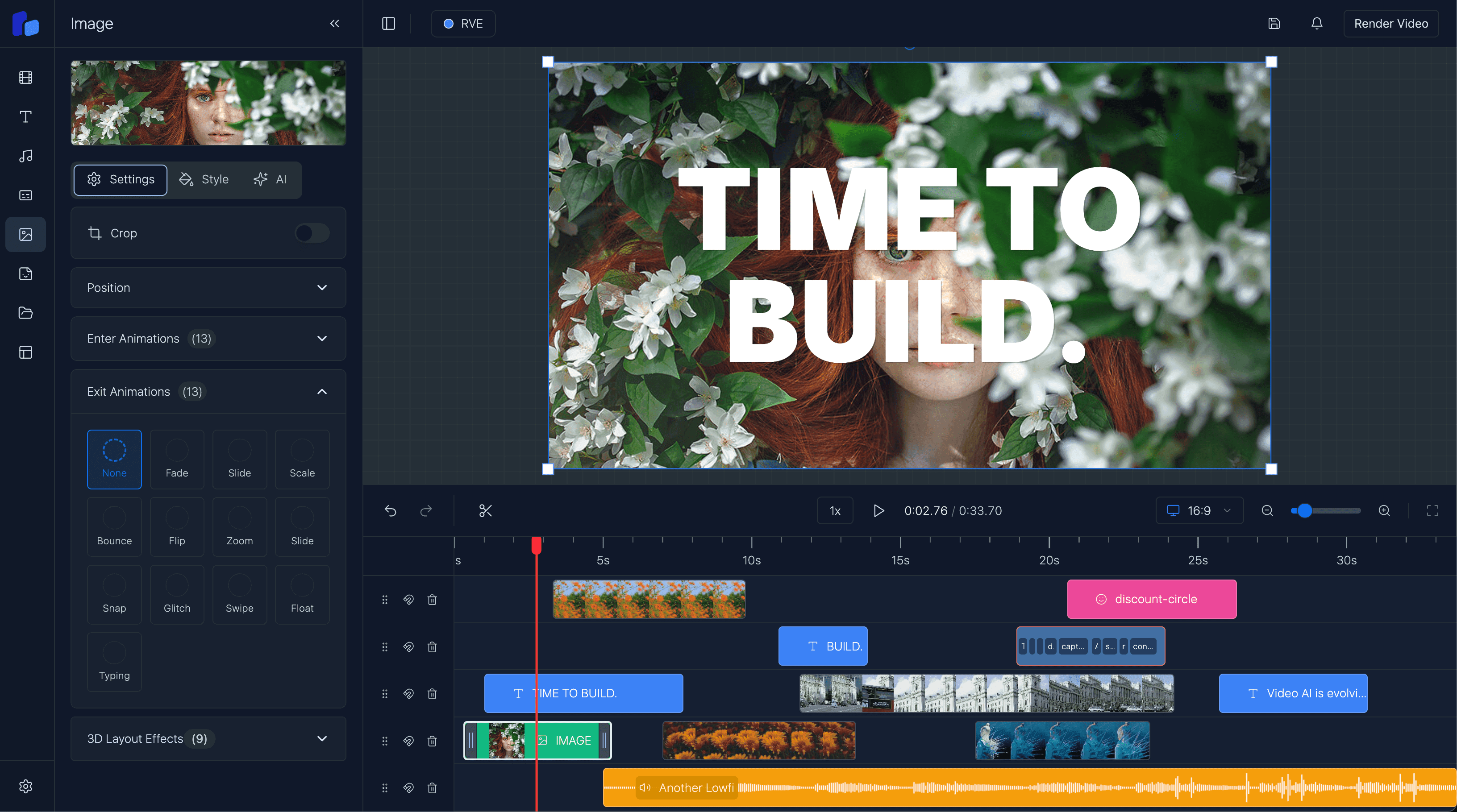
- timeline visibility so users can move, trim, and inspect segments
- style controls for font, size, color, background, stroke, and alignment
- safe line breaking for readable subtitle blocks
- import/export support for files like
.srt - preview/export consistency so the final render matches the editor UI
For browser-based products, captions are often not just an accessibility feature. They are also part of the core editing workflow for social clips, talking-head videos, explainers, and AI-generated content.
Use a caption model that can grow with you
The simplest mistake is storing captions as a single text blob.
You want a structure that can support:
- sentence-level segments
- optional word-level timing
- track placement
- per-caption or shared styling
- import/export transforms
A practical starting point looks like this:
export type CaptionWord = {
  text: string;
  startMs: number;
  endMs: number;
  confidence?: number;
};

export type CaptionSegment = {
  id: string;
  text: string;
  startMs: number;
  endMs: number;
  trackId: string;
  words?: CaptionWord[];
  style?: {
    fontFamily?: string;
    fontSize?: number;
    color?: string;
    background?: string;
    strokeColor?: string;
    strokeWidth?: number;
    textAlign?: "left" | "center" | "right";
    position?: "top" | "center" | "bottom";
  };
};
If your timeline already uses frames internally, convert caption times to frames at the boundary and keep one canonical model inside the editor.
That is the same idea I recommend in Web-Based Video Editor Architecture: pick one timing system and stay consistent.
Put captions on the timeline, not beside it
Captions usually work better when they are treated as first-class timeline items.
That gives you:
- visual timing feedback
- drag and trim interactions
- synchronization with playback
- overlap detection
- easier multi-track editing if you support subtitles, callouts, and text overlays separately
A simplified timeline item can look like this:
export type TimelineCaptionItem = {
  id: string;
  type: "caption";
  from: number;
  to: number;
  trackId: string;
  segmentId: string;
};
If your editor already supports overlays, captions often fit naturally into the same system. That is one reason overlays are such a useful foundation for video editing UIs.
Support both manual captions and imported captions
In practice, teams usually need both workflows.
1. Manual caption creation
This is useful when users:
- want to type subtitles themselves
- need short social hooks or callouts
- are editing only a few segments
- want total control over phrasing
A common first implementation is to split text into chunks and estimate timing.
That works, but it should be treated as a convenience path, not your long-term truth.
2. Imported caption files or transcript data
This is the stronger path for real editing products.
Users often already have transcript output from:
- Whisper
- AssemblyAI
- Deepgram
- custom speech-to-text pipelines
- uploaded
.srtsubtitle files
If you can import external timing cleanly, your editor becomes much easier to fit into real production workflows.
.srt is the minimum useful format to support
If I had to pick one caption format to support first, it would usually be .srt.
Why:
- it is simple
- it is widely understood
- users can export it from lots of other tools
- it gives you an easy bridge between subtitle workflows and your React editor
A tiny parser flow looks like this:
function parseSrtTimestamp(value: string) {
  const [time, ms] = value.split(",");
  const [hours, minutes, seconds] = time.split(":").map(Number);
  return hours * 3600000 + minutes * 60000 + seconds * 1000 + Number(ms);
}

export function parseSrt(input: string): CaptionSegment[] {
  return input
    .trim()
    .split(/\n\s*\n/)
    .map((block, index) => {
      const lines = block.split("\n").map((line) => line.trim());
      const [, timeRange, ...textLines] = lines;
      const [start, end] = timeRange.split(" --> ");

      return {
        id: `caption-${index + 1}`,
        text: textLines.join(" "),
        startMs: parseSrtTimestamp(start),
        endMs: parseSrtTimestamp(end),
        trackId: "captions",
      };
    });
}
That is enough to get usable subtitle support into an editor quickly.
Later you can add:
- multi-language subtitle tracks
- richer import validation
- word-level timing
- style presets
- export back to
.srtor JSON
Word-level timing is optional, but very valuable
If you want animated karaoke captions, highlighted words, AI-assisted edits, or transcript-level correction tools, word timing becomes much more important.
It helps with:
- active-word highlighting
- precise transcript editing
- jump-to-word navigation
- better sentence regrouping
- AI workflows that operate on transcript spans
But word timing also adds complexity. So the usual tradeoff is:
- sentence/segment timing is enough for basic subtitle support
- word timing is better for premium editing UX
For many products, the right move is segment timing first, then optional word timing once the import and timeline systems are stable.
Styling matters more than most teams expect
Caption support is not finished once the words appear on screen.
Users usually want control over:
- font family
- font size
- text color
- stroke or outline
- shadow or background box
- line height
- alignment
- vertical placement
- safe margins for social formats
This is especially important for:
- TikTok and Reels style videos
- educational content
- talking-head content
- branded video products
If your product already has a strong captions feature page, make sure your informational content points users there. Guide content should answer the implementation question. Feature pages should answer the product evaluation question.
Preview and export must use the same assumptions
This is where caption systems often break.
If preview and export use different layout logic, users get:
- line breaks changing at render time
- text overflowing differently
- subtitle positions shifting
- word highlights drifting out of sync
The safest approach is to make preview and render depend on the same caption layout logic and the same timing conversions.
If you are rendering with Remotion, that is a strong fit because it lets you keep the React composition model close to the editor state.
A practical build order
If I were adding captions to a React video editor today, I would do it in this order:
- define a durable caption segment model
- show caption segments on the timeline
- support manual create/edit/delete
- add
.srtimport - add shared style controls
- render captions from the same data model used by the timeline
- add word-level timing only when there is a real use case
That gets you to a useful product much faster than trying to build every advanced caption behavior at once.
Build vs buy
You should probably build more of the caption system yourself if:
- captions are a core product differentiator
- you need unusual transcript workflows
- you have custom animation or editorial logic
You should probably start with React Video Editor if:
- you need captions, timeline, overlays, and rendering to work together quickly
- your real value is in the workflow above the editor layer
- you want a stronger foundation than a collection of disconnected demo components
FAQ
How do I add subtitles to a React video editor?
Treat subtitles as timed caption segments, display them on the timeline, support import from .srt or transcript JSON, and render them from the same source of truth used in preview.
Should captions use frames or milliseconds?
Use whichever timing model your editor uses internally, but pick one canonical representation. Many editors accept subtitle input in milliseconds and convert to frames for timeline/rendering.
Do I need word-level timings for captions?
Not always. Segment-level timings are enough for many subtitle workflows. Word-level timing matters more for animated captions, transcript editing, and AI-assisted editing features.
What is the easiest caption import format to support first?
Usually .srt. It is simple, common, and enough to unlock a lot of real user workflows quickly.
Should captions be separate from overlays?
They can be, but many React video editors benefit from treating captions as a specialized overlay or timeline item type so they can share timing, selection, and rendering systems.
Final thought
If your product needs captions, do not treat them as an afterthought.
In a modern React video editor, captions are part of the editing model, the timeline, the styling system, and the export pipeline all at once.
If you build them as a real system instead of a floating text layer, the rest of the editor gets easier to reason about too.